You can add ANY of our Radiance Lightbrary Blog posts to create your very own My Lightbrary. To add items to your My Lightbrary, you must first be a Registered Member AND you must have logged into your Membership Account.
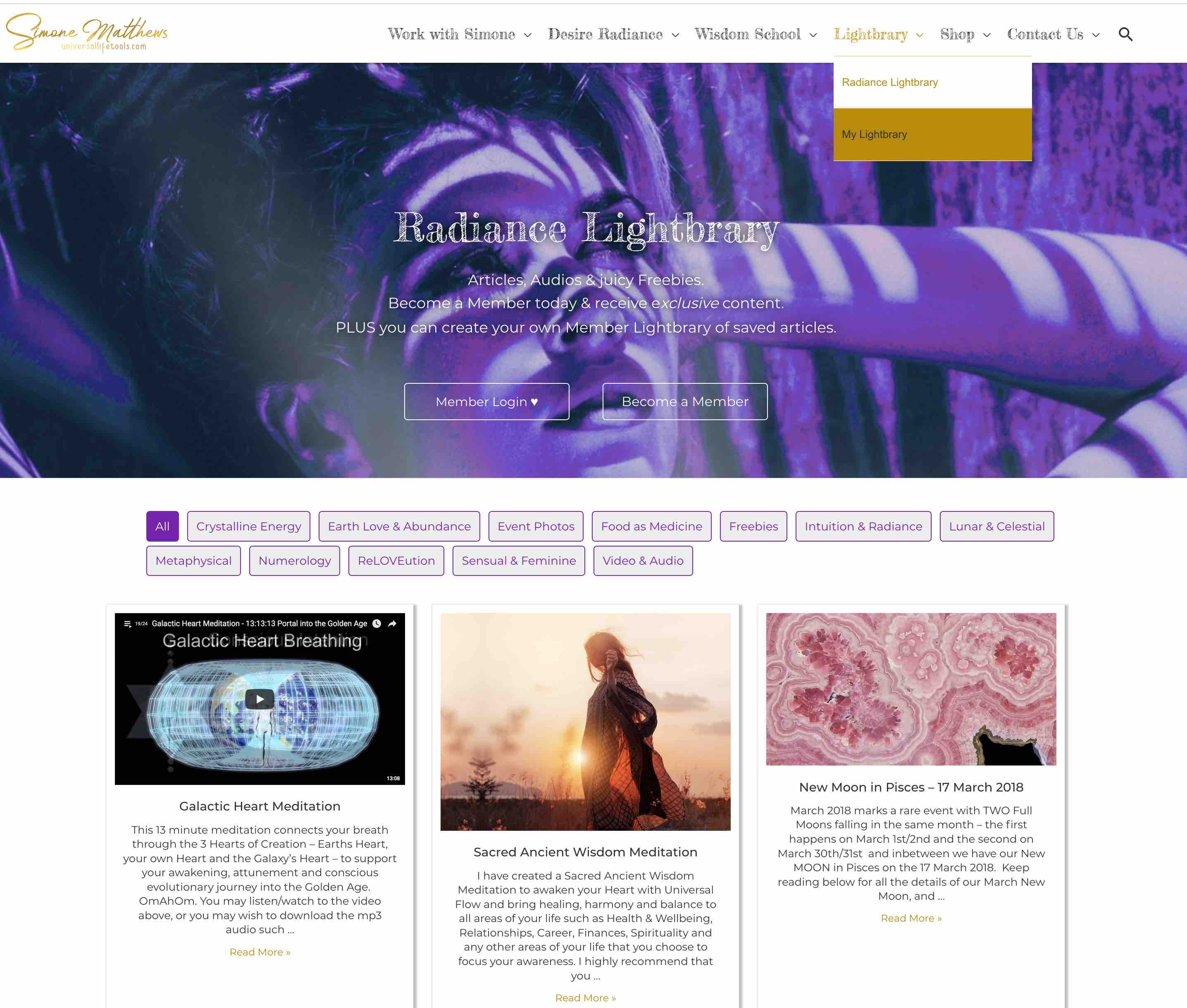
Login to your Membership account and visit our Radiance Lightbrary page from Main Menu dropdown menu (see screen print below). From this page, click on any of the Category Tabs (eg Crystalline Energy) to view our Blog Posts and then click on the Image or on the 'Read More >>' link to view the Blog Post.
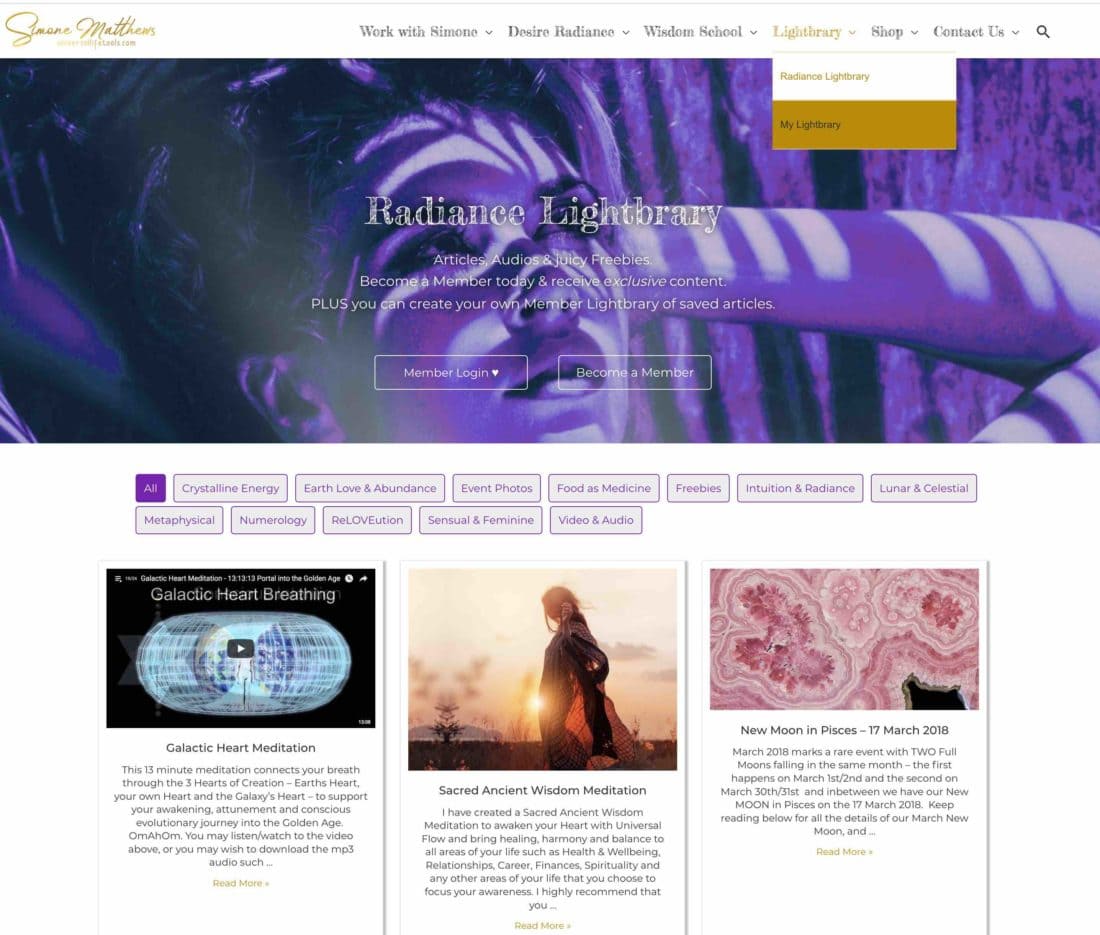
When viewing a Radiance Lightbrary Blog Post, you can add it to your very own Lightbrary by clicking on the 'Add this post to my Lightbrary' purple button that is displayed at the bottom of every Lightbrary Blog Post.
The button then updates to let you know that the Post has been added to your Lightbrary (see the second screenshot below). You can then click on the 'View my Saved Lightbrary Posts >>' link below the purple button to view ALL of your saved Lightbrary Posts - that have been saved on your private My Lightbrary Page.
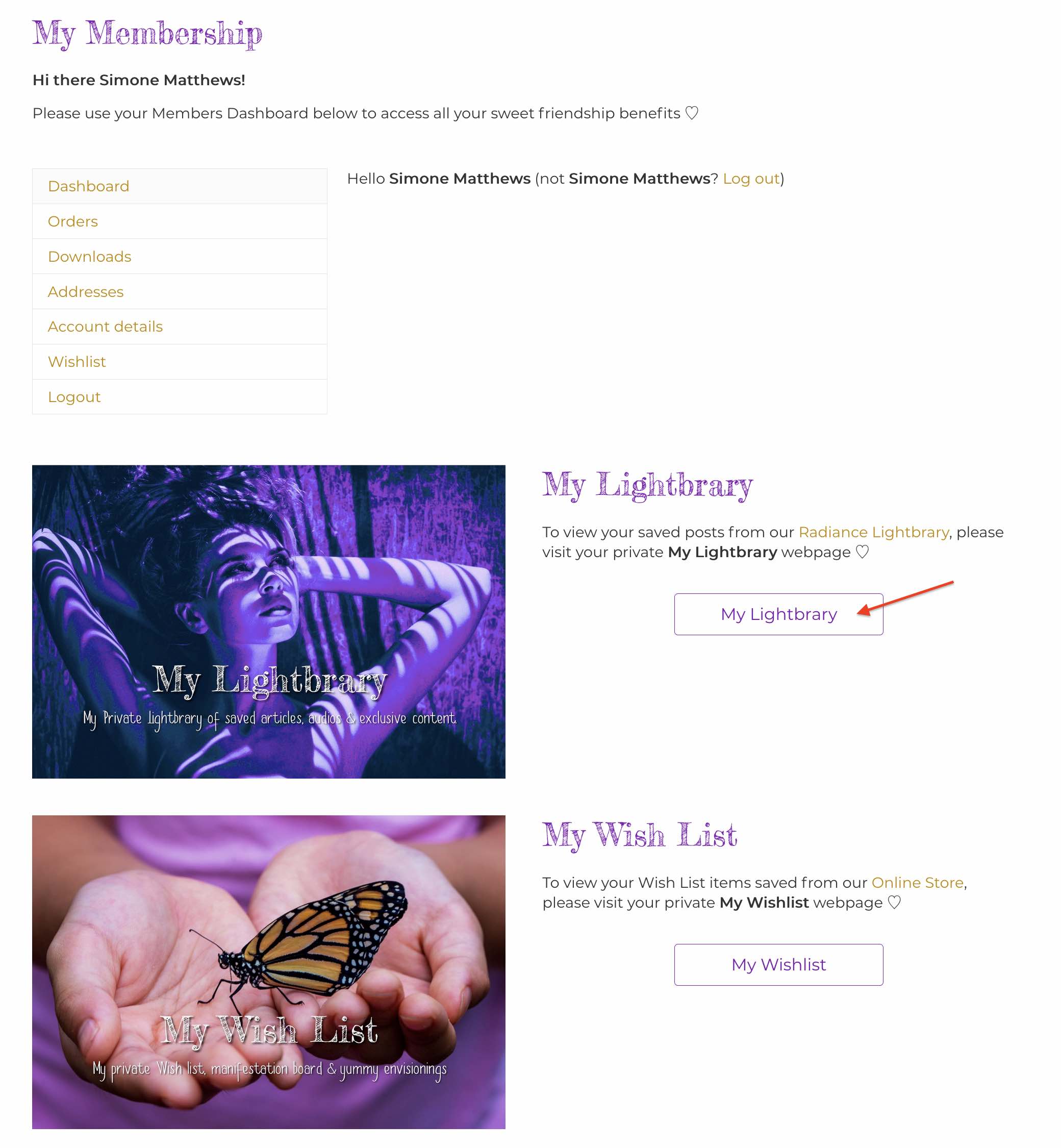
Only YOU can see the posts on your My Lightbrary Page. They are unique for you and accessible from any device.


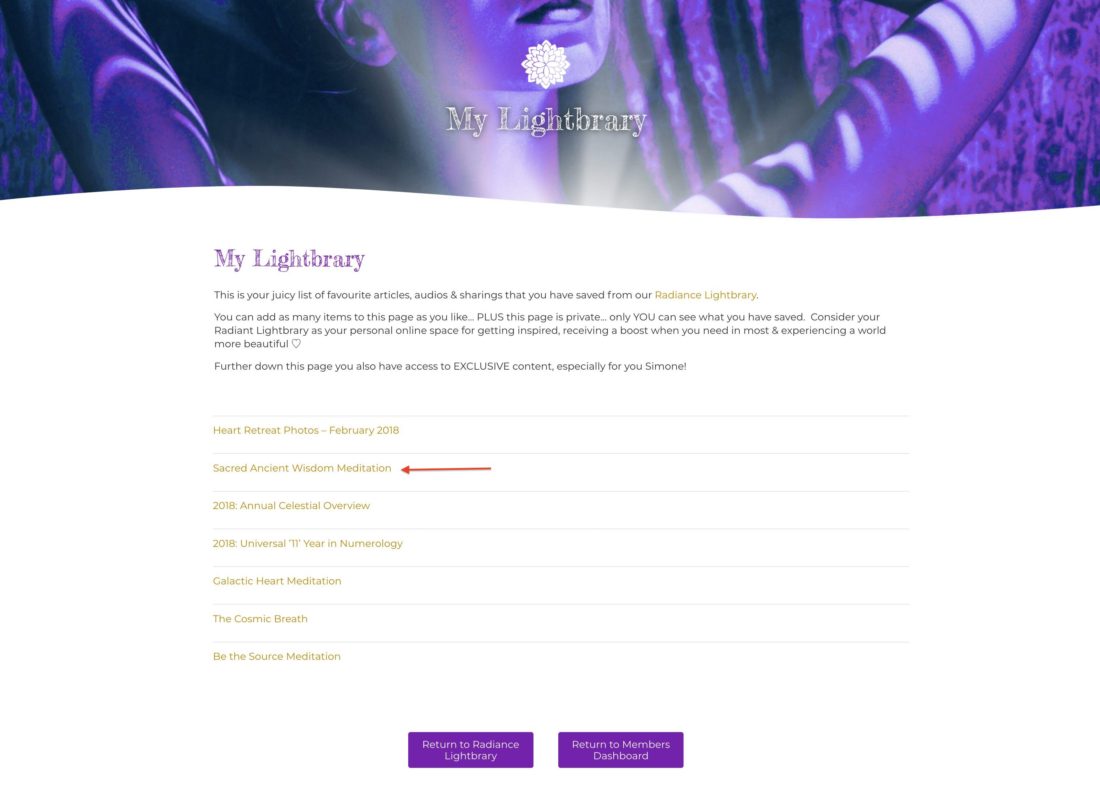
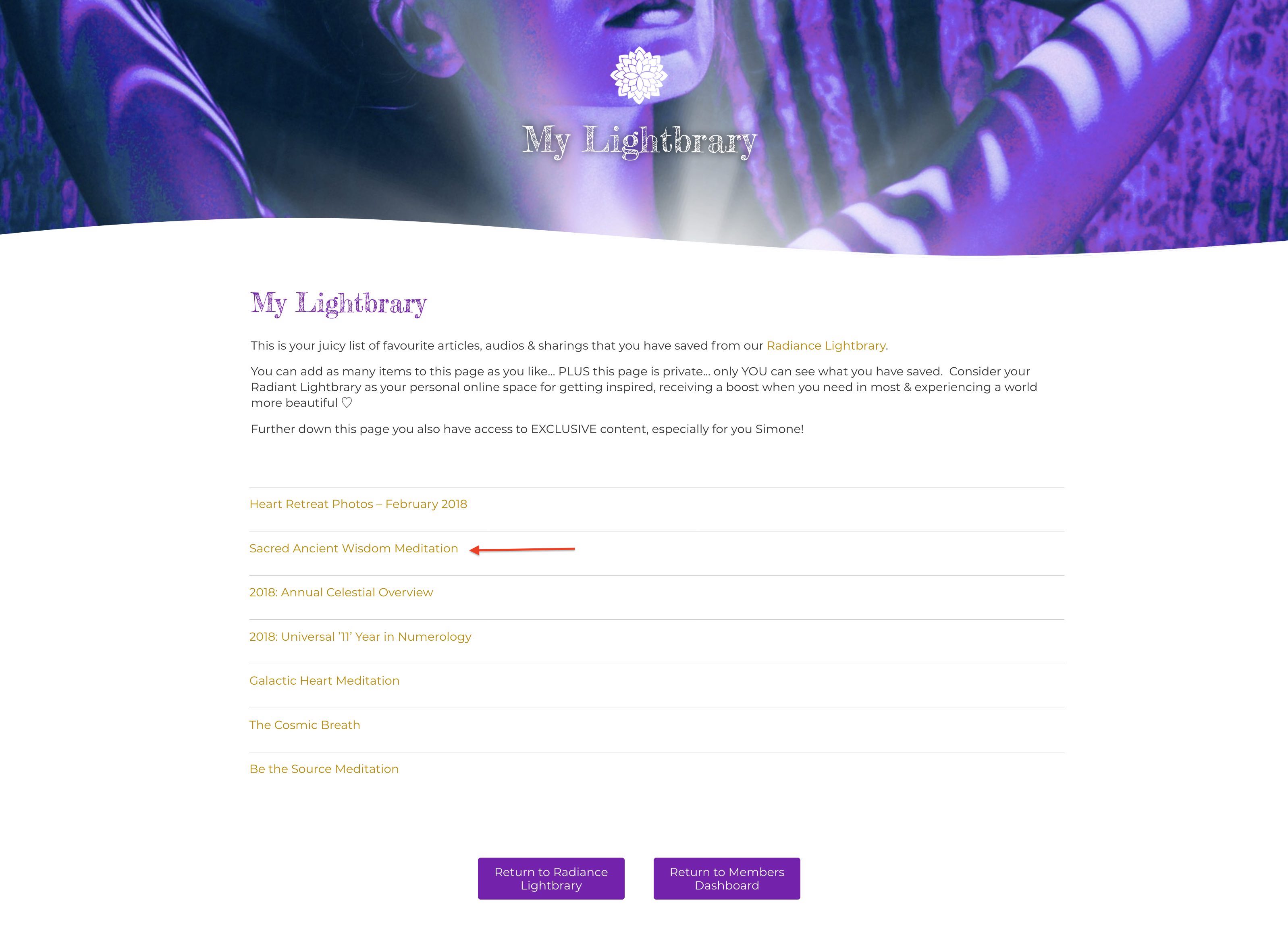
From your saved My Lightbrary posts page, you can view ALL of your saved items and click on the links to read/access these posts at any time.